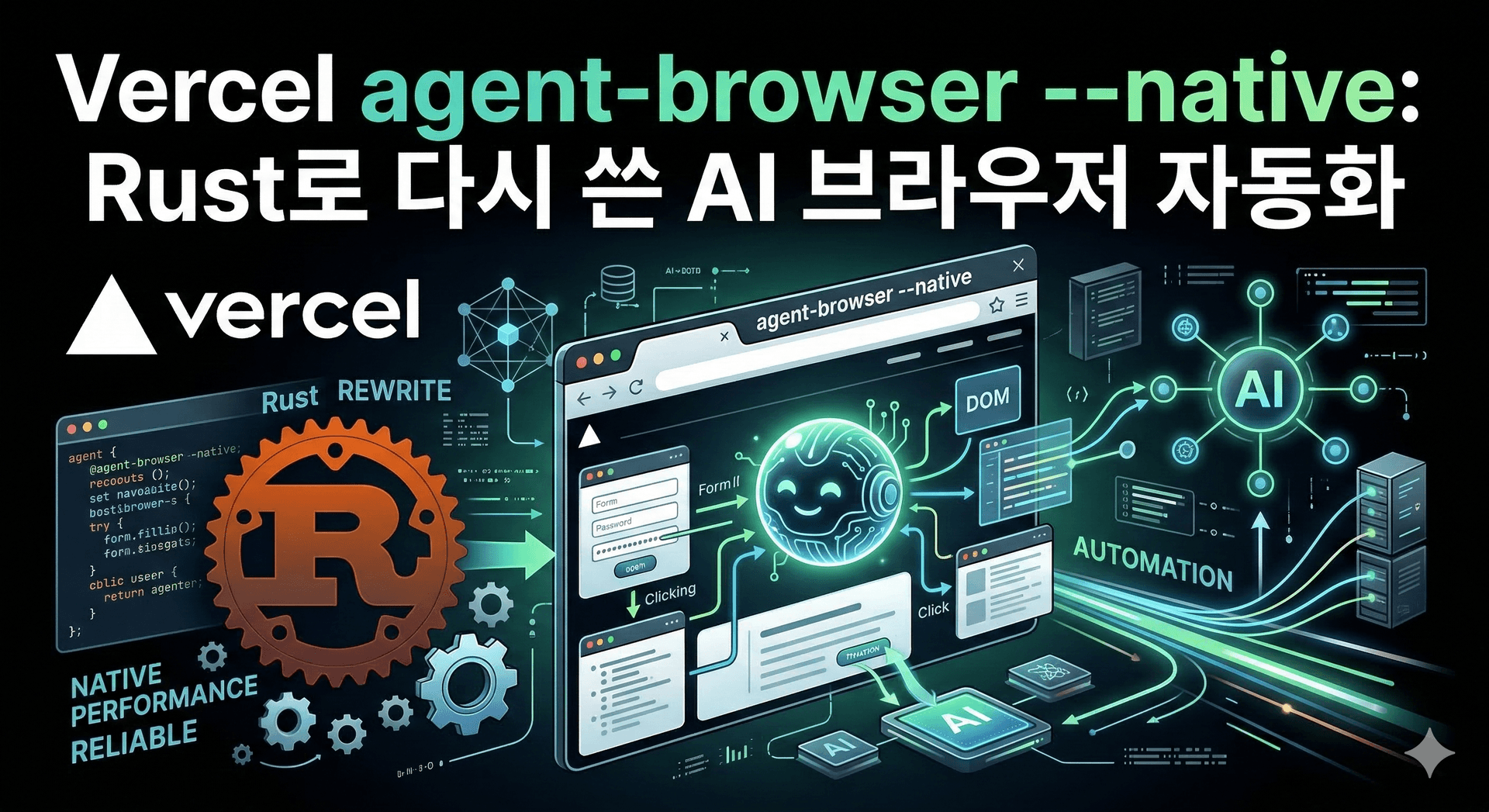
Vercel agent-browser --native: Rust로 다시 쓴 AI 브라우저 자동화
AI 에이전트가 브라우저를 제어할 때, 보통 이렇게 작동합니다:
AI 에이전트 → Node.js → Playwright → CDP → Chrome
여기서 Node.js와 Playwright는 사실 오버헤드입니다. AI 에이전트는 그냥 "버튼 클릭해줘"라고 말하는데, 왜 중간에 두 개의 런타임을 거쳐야 할까요?
Vercel은 이 문제를 Rust로 해결했습니다.
agent-browser --native: 무엇이 바뀌었나?
기존 구조
AI 에이전트
 ↓
Node.js 런타임 (항상 실행 중)
 ↓
Playwright 라이브러리
 ↓
CDP (Chrome DevTools Protocol)
 ↓
Chrome
- Node.js 프로세스가 계속 메모리 차지
- Playwright 초기화 오버헤드
- 런타임 레이어 2개 통과
--native 구조
AI 에이전트
 ↓
Rust 바이너리 (독립실행형 데몬)
 ↓
CDP (직접 호출)
 ↓
Chrome
- 런타임에 Node.js 불필요
- 메모리 사용량 대폭 감소
- 바이너리 크기 작아짐 (footprint ↓)
- 시작 속도 빨라짐
AI 친화적 워크플로우
agent-browser는 처음부터 AI가 쓰기 쉽게 설계되었습니다.
1. snapshot으로 시작
# 현재 페이지의 접근성 트리 가져오기
agent-browser snapshot

# 출력:
# @e1 button "Sign in"
# @e2 input[type=email] "Email"
# @e3 input[type=password] "Password"
# @e4 button "Forgot password?"
AI는 이제 고유 ref (@e1, @e2)로 요소를 참조할 수 있습니다.
2. ref 기반 액션
# 전통적인 셀렉터 (복잡함)
agent-browser click 'button[data-testid="login-btn"]'

# AI 친화적 ref (간단함)
agent-browser click @e1- 셀렉터 작성 불필요
- DOM 구조 변경에 강함
- AI가 이해하기 쉬움
3. 풍부한 명령어
페이지 탐색:agent-browser open https://example.com
agent-browser goto /loginagent-browser click @e1
agent-browser fill @e2 "user@example.com"
agent-browser type @e3 "password123"
agent-browser hover @e4
agent-browser check @e5agent-browser screenshot output.png
agent-browser pdf report.pdfagent-browser get text @e1
agent-browser get attr @e2 "href"
agent-browser is visible @e3
agent-browser is checked @e4agent-browser wait @e1 # 요소가 나타날 때까지
agent-browser wait 3000 # 3초 대기agent-browser mouse move 100 200
agent-browser mouse click
agent-browser keyboard press Enter
agent-browser keyboard type "Hello World"agent-browser find "Submit button"
# → @e7agent-browser diff snapshot before.json after.json
agent-browser diff screenshot before.png after.png
agent-browser diff url https://old.com https://new.com# 요청 가로채기 및 모킹
agent-browser network route "*/api/users" mock.jsonagent-browser cookie set "session" "abc123"
agent-browser storage get "token"세션 & 프로필 관리
격리된 브라우저 인스턴스
# 각각 독립된 브라우저
agent-browser --session=test1 open https://app.com
agent-browser --session=test2 open https://app.com
로그인 상태 유지
# 프로필로 상태 저장
agent-browser --profile=admin open https://app.com
# 로그인...

# 나중에 같은 프로필로 재사용
agent-browser --profile=admin open https://dashboard.com
# 이미 로그인된 상태!
세션 이름 지정
agent-browser --session-name="qa-test" open https://staging.app.com주석 스크린샷
AI가 요소를 구별하기 쉽게 번호가 표시된 스크린샷 생성:
agent-browser screenshot --annotate output.png생성된 이미지:
┌─────────────────────┐
│ [1] Sign in │
│ [2] ___________ │ ← Email input
│ [3] ___________ │ ← Password input
│ [4] Forgot? │
└─────────────────────┘
AI는 이제 "2번 칸에 이메일 입력해줘"라고 말할 수 있습니다.
크로스 플랫폼 바이너리
# macOS
brew install agent-browser

# Linux
curl -fsSL https://vercel.com/agent-browser/install.sh | sh

# Windows
winget install Vercel.AgentBrowser
전용 Rust 바이너리 제공, Node.js 폴백도 지원.
실전 활용 예시
예시 1: E2E 테스트
#!/bin/bash
agent-browser --session=e2e open https://app.com

# 로그인
agent-browser fill @email "test@example.com"
agent-browser fill @password "testpass"
agent-browser click @login-btn

# 대시보드 확인
agent-browser wait @dashboard
agent-browser screenshot --annotate dashboard.png

# 리포트 생성
agent-browser pdf report.pdf
예시 2: AI 에이전트 통합
# AI 에이전트가 브라우저 제어
import subprocess

def ai_browse(instruction):
 # 1. 현재 상태 스냅샷
 snapshot = subprocess.run(
 ["agent-browser", "snapshot"],
 capture_output=True, text=True
 ).stdout

 # 2. AI에게 다음 액션 물어보기
 action = ask_ai(f"Snapshot: {snapshot}\nTask: {instruction}")

 # 3. 액션 실행
 subprocess.run(["agent-browser"] + action.split())

# 사용
ai_browse("로그인해서 대시보드 스크린샷 찍어줘")
예시 3: 자동화된 모니터링
#!/bin/bash
# 매 5분마다 실행

agent-browser --session=monitor open https://app.com/status

# 스크린샷 저장
agent-browser screenshot monitoring/$(date +%Y%m%d_%H%M%S).png

# 이전과 비교
if agent-browser diff screenshot prev.png current.png | grep "changed"; then
 # Slack 알림
 curl -X POST $SLACK_WEBHOOK -d '{"text":"Status page changed!"}'
fi
Playwright vs agent-browser
| 기능 | Playwright | agent-browser --native |
|---|---|---|
| 런타임 | Node.js 필수 | 독립 바이너리 |
| 메모리 사용 | 높음 | 낮음 |
| 시작 속도 | 보통 | 빠름 |
| AI 친화성 | 보통 | 높음 (ref 기반) |
| 주석 스크린샷 | 없음 | 기본 제공 |
| 설치 크기 | 큼 | 작음 |
| 네트워크 모킹 | 복잡함 | 간단함 |
언제 사용해야 할까?
agent-browser를 쓰세요:
- AI 에이전트가 브라우저를 제어할 때
- 가벼운 헤드리스 자동화
- 메모리 제약이 있는 환경
- CLI 기반 워크플로우
Playwright를 쓰세요:
- 복잡한 E2E 테스트 스위트
- TypeScript 타입 안정성 필요
- 기존 Playwright 코드베이스 보유
- 풍부한 생태계 필요
마무리하며
agent-browser --native는 "AI가 쓰기 위한 브라우저 자동화"의 새로운 표준을 제시합니다.
핵심은:- Rust로 다시 써서 런타임 오버헤드 제거
- ref 기반 인터랙션으로 AI 친화성 극대화
- 주석 스크린샷으로 시각적 이해 지원
Playwright는 여전히 훌륭하지만, AI 에이전트에게는 agent-browser가 더 자연스러운 선택일 것 같습니다.
여러분은 AI 에이전트 브라우저 자동화에 뭘 쓰고 계신가요?
이 글은 Geeknews에서 발견한 내용을 정리한 것입니다. 원본은 여기에서 확인할 수 있습니다.
광고
Claude Code, OpenCode 같은 AI 코딩 도구를 직접 쓰면서 AI 업계의 변화를 개발자 관점에서 기록합니다. 단순 번역이 아니라 써본 경험과 해석을 함께 남기려고 해요.
관련 글
앤트로픽 코리아 대표 최기영은 누구? Anthropic 한국 서울 오피스 정리
앤트로픽(Anthropic) 코리아 대표로 선임된 최기영은 누구인지, 서울 오피스는 언제 문을 열었고 무엇을 하는지 공식 발표 기준으로 정리했어요. 한국의 클로드(Claude) 사용률과 국내 도입 기업도 함께 담았어요.
Anthropic, Series H로 650억 달러 조달: 기업가치 9650억 달러, 런레이트 매출 470억 달러
Anthropic이 650억 달러 규모의 Series H를 마감했어요. 기업가치는 9650억 달러, 런레이트 매출은 470억 달러를 넘었어요. 이 돈이 어디로 가는지, 그리고 Opus 4.8 출시와 같은 날 나온 의미를 짚어봤어요.
Claude Opus 4.8 출시: 4.7 대비 코드 결함 4배 감소, Fast 모드는 3배 저렴해졌다
Anthropic이 Opus 4.8을 내놨어요. 가격은 그대로지만 코드 신뢰성이 4배 좋아졌고, Fast 모드 비용이 3배 내려갔어요. 매일 Claude Code를 쓰는 입장에서 체감 포인트를 정리했어요.